How to Fix vSeeBox Live TV Not Working – No Signal, Frozen or Crash
20 feb 2025
·
vSeeBox
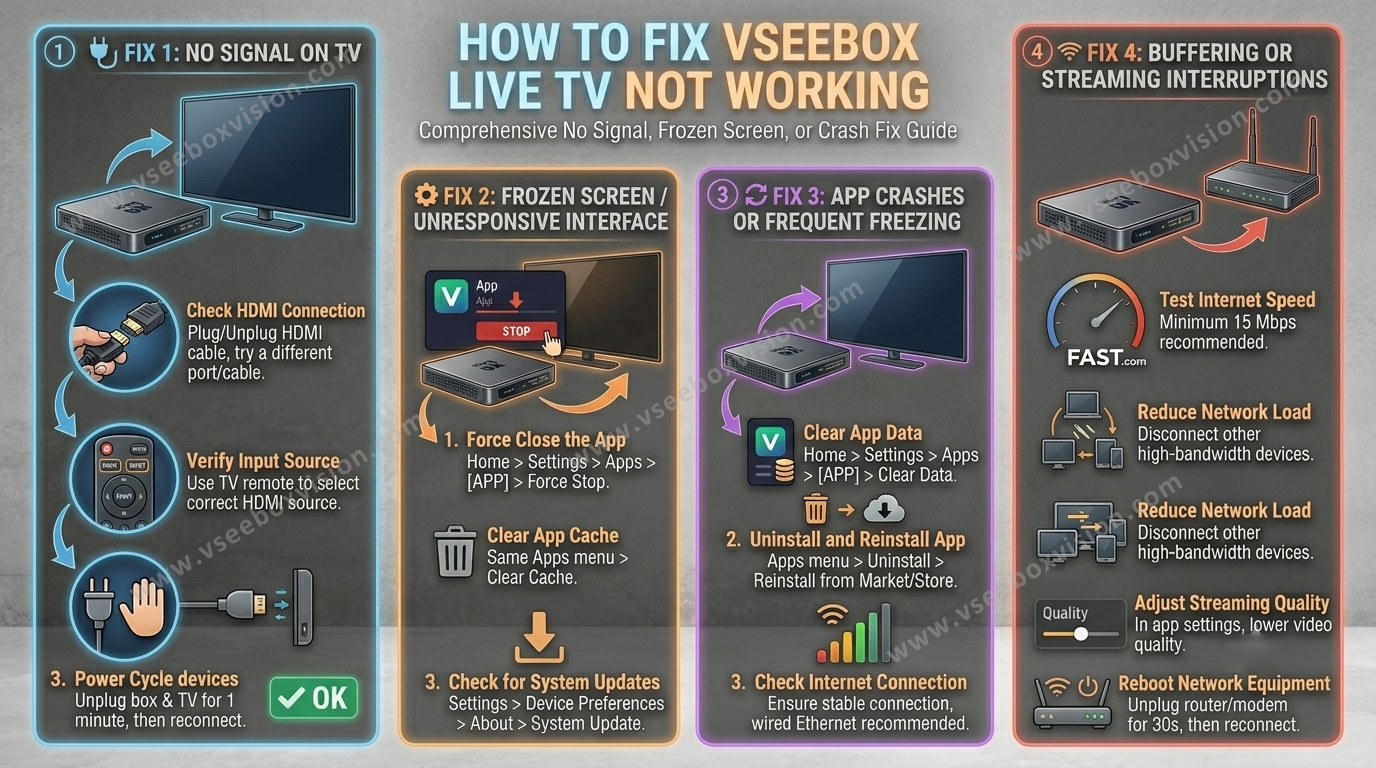
Fix 1: No Signal on TV
Step 1: Check HDMI Connection Ensure the HDMI cable is securely connected to both the vSeeBox and your TV. Try unplugging and replugging the HDMI cable at both ends. Test with a different HDMI cable or port on your TV.
Step 2: Verify TV Input Source Use your TV remote to select the correct HDMI input source corresponding to the port connected to the vSeeBox.
Step 3: Power Cycle Devices Turn off your TV and vSeeBox. Unplug both devices from the power source. Wait for about 1 minute, plug them back in, and power them on.
Step 4: Test on Another TV Connect your vSeeBox to a different TV to determine if the issue is with the box or the original TV.
Fix 2: Frozen Screen or Unresponsive Interface
Step 1: Force Close the App Press the home button on your remote to exit the current app. Navigate to Settings > Apps, select the problematic app, and choose Force Stop.
Step 2: Clear App Cache In the same apps menu, select the app and choose Clear Cache.
Step 3: Restart vSeeBox Unplug the vSeeBox from the power source. Wait for about 1 minute, plug it back in, and power it on.
Step 4: Check for System Updates Go to Settings > Device Preferences > About > System Update. Install any available updates.
Step 5: Factory Reset (If Necessary) Navigate to Settings > Device Preferences > Reset. Select Factory Data Reset and confirm.
Fix 3: App Crashes or Frequent Freezing
Step 1: Clear App Data Go to Settings > Apps, select the problematic app, and choose Clear Data.
Step 2: Uninstall and Reinstall the App In the apps menu, select the app and choose Uninstall. Reinstall the app from the Google Play Store or the vSeeBox Market.
Step 3: Check Internet Connection Ensure yourvSeeBoxis connected to a stable internet connection. For optimal performance, a wired Ethernet connection is recommended over Wi-Fi.
Step 4: Update Apps Open the Google Play Store, go to My Apps & Games, and update all installed apps. If you are using a VPN, try disabling it to see if the app functions properly without it.
Fix 4: Buffering or Streaming Interruptions
Step 1: Test Internet Speed Use the pre-installed Fast app to check your internet speed. A minimum of 15 Mbps is recommended for smooth streaming.
Step 2: Reduce Network Load Disconnect other devices using the same internet connection to free up bandwidth. If you are using Wi-Fi, consider switching to a wired Ethernet connection for a more stable connection.
Step 3: Adjust Streaming Quality In the streaming app, lower the video quality settings to reduce buffering.
Step 4: Reboot Network Equipment Unplug your router and modem. Wait for about 30 seconds, plug them back in, and wait for the internet connection to be reestablished.